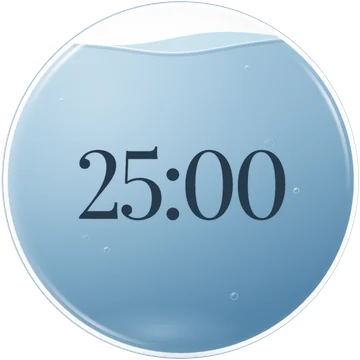
The app’s timer, available on iPhone.
iPhone Focus mode for work: what to let through
Your hand reaches for your phone more often than the phone calls for you. Set up Focus mode to let through the notifications that can’t wait.
Discuss this article with
Contents,4 sections
You turn your phone over. The Lock Screen shows the time and nothing else, and you put it back face down on the desk. It hadn’t rung, it hadn’t buzzed, you’d put it on silent for exactly that. Your hand went for it anyway, and you couldn’t say what it was looking for.
For a study1, young adults filmed their ordinary days with a small camera at eye level. Nearly nine times out of ten, the reach for their phone came from them, not from a notification. One time in six, it was only a glance at the Lock Screen, like yours.
Almost all of them sometimes unlocked it, opened an app, closed it again and put the phone down without doing anything in it, and couldn’t say why. One of them found an image for it:
I think it’s an automatic… like when you have a cough and you put your hand to your mouth.
Most of the time, their phones were on silent, or too far away to be heard. Silent mode mutes your phone, but it doesn’t hold back your hand.
Should you turn off all your notifications?
That glance is a check: has anything happened? Face down and silent, your phone has no other way to tell you, so the question comes back at every lull in your work.
Turning everything off doesn’t silence the question. In a two-week experiment2, people who got no notifications at all felt more anxious about missing something, and no more attentive. They checked their phones on their own more often. Those who got them in three batches a day said they felt more attentive and less stressed.
The experiment doesn’t say who to let through. When what can’t wait is allowed to ring, a silent phone has already answered you.
That silence answers the hand that checks. The one that moves out of habit, the way you put your hand to your mouth, wasn’t waiting for an answer.
A Focus mode for work
Do Not Disturb, one of your iPhone’s Focus modes, silences everything. A work Focus lets through only a short list.
Two or three people are enough: the person you live with, a family member who might need you, the coworker you’re wrapping up today’s report with. Someone who needs you right away will call back: with repeated calls allowed, a second call within three minutes gets through.
For apps, keep what the session needs: your calendar if a meeting falls in the middle, your team’s chat if someone is waiting on your answer. Social media, shopping and news can come later.
Try this
Your work Focus, set up once.
- In Settings, open Focus, then Work, or create one of your own.
- In People, allow your two or three names and turn on repeated calls.
- In Apps, allow what the session needs, your timer included.
- Turn it on from Control Center for your session, or schedule it for the hours you work.
- If you also work on a Mac signed in to the same account, Share Across Devices extends this Focus to it.
These labels are Apple’s3, and they sometimes change from one version to the next.
If your timer goes quiet with everything else, the end of your session slips by without a sound, and your hand will turn the phone over to check the time.
In the app
To know when your focus and your break end, allow Calm Pomodoro in your Focus.
Its notifications need to be allowed too, and their sound follows your iPhone’s settings, silent mode included.
Other notifications, at set times
What your Focus silences isn’t lost. Scheduled Summary, in Settings, then Notifications, bundles them at the times you set, for the apps you choose. Start with the apps that send you notifications to get you to come back.
This setting looks like the experiment’s three batches, though no one has measured what it does. Try it for a week with only a few times: morning, noon and evening.
When your hand reaches for it anyway
Maybe your hand isn’t after the phone itself. It’s after a minute away from the work, and the phone is right there, face down, within reach.
You can choose what it finds. While your Focus is on, your iPhone can switch to a Home Screen page you’ve set up: put today’s tools there, and nothing to scroll.
You’ve probably read that a phone gets in the way just by being on the table, even face down, even switched off. That finding has hardly been replicated since.
In an experiment in London4, young adults picked up their phone far less often on the day they had to get up to reach it. But their leisure time on the computer more than doubled.
As for how many notifications a day is too many, the averages going around describe other people. Your iPhone keeps your own count.
Try this
Count before you decide.
In Settings, go to Screen Time, tap Daily Average and scroll all the way down. Your iPhone counts the notifications you received there, and the times you picked it up. If the second number is far higher than the first, it’s your hand leading, more than the phone.
At the end of your session, turn it over for good. Whatever came in meanwhile is there, and this time, your hand knows what it came for.
Common questions
What’s the difference between Do Not Disturb and Focus mode?
Do Not Disturb is one of the iPhone’s Focus modes, the one that silences everything from Control Center. Every Focus, that one included, is set up in Settings, Focus: that’s where you choose which people and apps get through. A Work Focus, or one of your own, keeps its own choices.
Does Focus mode block apps on iPhone?
No. It sorts notifications: those from the people and apps you allow get through, and the others wait. While it’s on, it can show a Home Screen page you chose, without stopping you from opening an app. To limit apps to certain hours, or to a set time per day, use Screen Time.
How do you turn off Focus mode?
Tap the active Focus in Control Center, or touch and hold its icon on the Lock Screen. You can also choose when it ends as you turn it on, “For 1 hour” for example. Turning on another Focus turns off the one that was on.
Sources
- Why are smartphones disruptive? An empirical study of smartphone use in real-life contexts, Computers in Human Behavior, 2021.
- Batching smartphone notifications can improve well-being, Computers in Human Behavior, 2019.
- Allow or silence notifications for a Focus on iPhone, Apple, iPhone User Guide, 2026.
- When the phone’s away, people use their computer to play: distance to the smartphone reduces device usage but not overall distraction and task fragmentation during work, Frontiers in Computer Science, 2025.
Spotted a mistake in this article? Write to contact@